



Why Teloa?

Fast and secure, without hidden fees
Teloa never stores your payment details. Use PayPal, Apple Pay, or any credit, debit, or prepaid card—no bank account needed. Receive instant confirmation via SMS or email after every Lyca Mobile refill.

3% Cashback & $5 When You Invite Your Friends
Earn 3% in Teloa credit on every Lyca Mobile refill—credits that never expire. Plus, invite your friends and everyone benefits: you'll get $5 in credit, and your friends enjoy a $5 discount on their first refill.
AutoPay with 5% Discount
Enable automatic payments with Teloa and your Lyca Mobile plan will renew every 30 days, saving you 5% each month. Cancel anytime, no commitments.
Fast and secure, without hidden fees
Teloa never stores your payment details. Use PayPal, Apple Pay, or any credit, debit, or prepaid card—no bank account needed. Receive instant confirmation via SMS or email after every Lyca Mobile refill.
3% Cashback & $5 When You Invite Your Friends
Earn 3% in Teloa credit on every Lyca Mobile refill—credits that never expire. Plus, invite your friends and everyone benefits: you'll get $5 in credit, and your friends enjoy a $5 discount on their first refill.
AutoPay with 5% Discount
Enable automatic payments with Teloa and your Lyca Mobile plan will renew every 30 days, saving you 5% each month. Cancel anytime, no commitments.
US Carriers Supported
US Carriers Supported








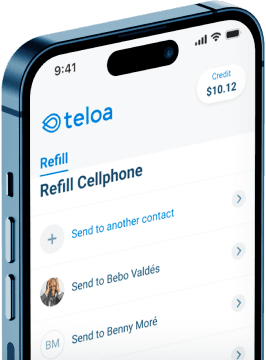
Download the Teloa App
Instantly refill your prepaid plan anytime, anywhere.


Lyca Mobile Refill Offer Terms
- One refill per payment method.
- Only for phone numbers that haven’t been refilled before on Teloa.
All You Need to Know about Lyca Mobile Refills
1. How do I pay my Lyca Mobile bill online?
Teloa makes paying your Lyca Mobile bill simple. Enter your phone number, select your plan, choose how you want to pay, and you're done. Your refill is applied instantly and you'll get a confirmation right away via SMS or email. No need to visit a store or remember any PINs. Plus, new Teloa users get $5 off their first refill. See the full step-by-step guide.
2. Can I use PayPal, Apple Pay, or Google Pay to pay my Lyca Mobile bill?
Yes. Teloa accepts PayPal, Apple Pay, Google Pay, and all major credit, debit, and prepaid cards — no bank account needed. Your payment details are never stored, and your Lyca Mobile refill goes through in seconds. See all accepted payment methods.
3. Is it safe to refill my Lyca Mobile plan through Teloa?
Yes. Teloa uses secure, encrypted payment processing and never stores your card or payment information. Cybersecurity platforms like APIVoid and ScamAdviser give Teloa a 100% trust score. You'll receive an instant confirmation via SMS, email, or push notification after every refill. Learn more about how Teloa protects your payments.
4. Can I put my Lyca Mobile plan on autopay?
Yes. With Teloa's Autopay, your Lyca Mobile plan renews automatically every 30 days, and starting from your second refill, you save 5% on every payment. There are no commitments and you can cancel anytime. Autopay is the easiest way to keep your phone active and save money. How to set up Autopay.
5. How can I save money on my Lyca Mobile phone plan?
Going prepaid is already a smart move: no contracts, no surprise fees, and you only pay for what you need. But if you refill with Teloa, you save even more. New users get $5 off their first refill, and Autopay saves you 5% on every payment after that. Share your referral link and you and your friend both get $5. No codes needed, discounts apply automatically. More tips to save on your prepaid phone plan.
6. Is it better to pay my phone plan online or buy a refill card in a store?
Paying online with Teloa beats buying a refill card at a store in every way:
- Refill instantly from anywhere, no driving or waiting in line
- No risk of expired or invalid cards
- Save 5% with Autopay, something store-bought cards can't offer
- Available 24/7, even at midnight or on holidays
- Bilingual support team available 7 days a week in English and Spanish
7. How can I check my Lyca Mobile balance?
Lyca Mobile operates on prepaid plans, so your "balance" reflects both your remaining plan allowances (data, minutes, texts) and any top-up credit on your account. You can check it in the following ways:
- Dialing *611# on your Lyca phone, you'll receive a message containing your balance information.
- Using the Lyca Mobile app. Open it and look for the section displaying your plan allowance balance.
- Logging into your account at mylyca.lycamobile.us. Your plan allowance balance will be visible on the dashboard.
- Calling customer service by dialing 612 from your Lyca Mobile phone, or 1-866-277-3221 from any other phone.
If you recharged with Teloa and your account hasn't updated after a few minutes, reach out to us at help@teloa.com and we'll help you sort it out. You can review all your past refills in your Teloa account under your refill history. How to check your balance after refilling with Teloa.